01
Pick the app language
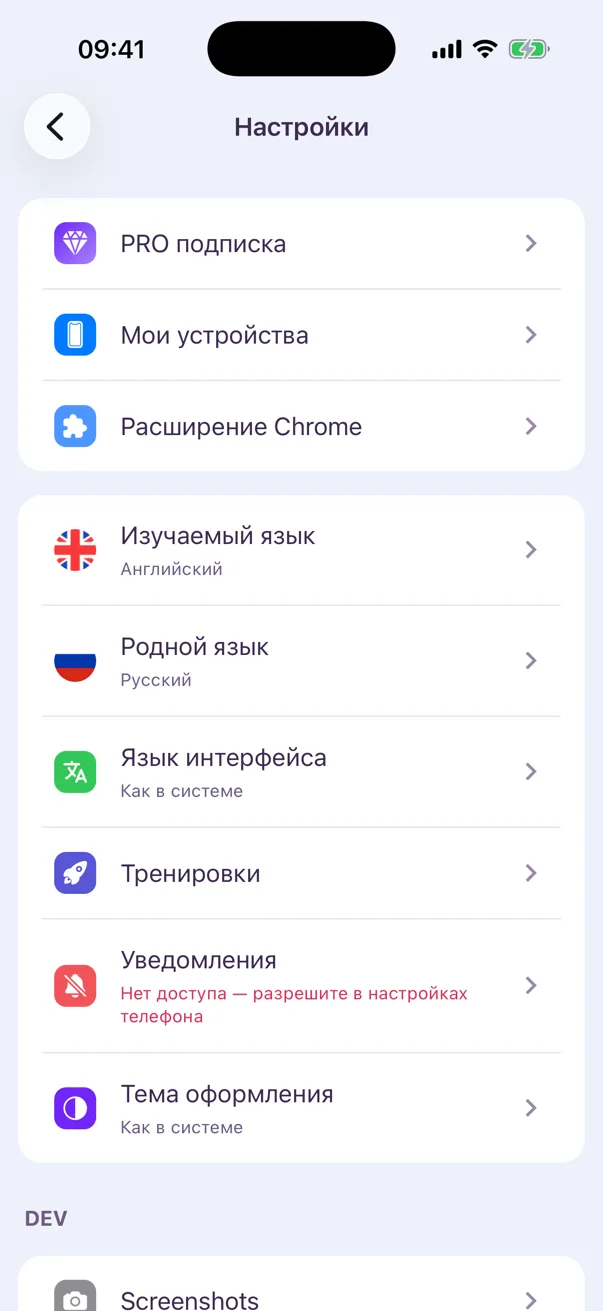
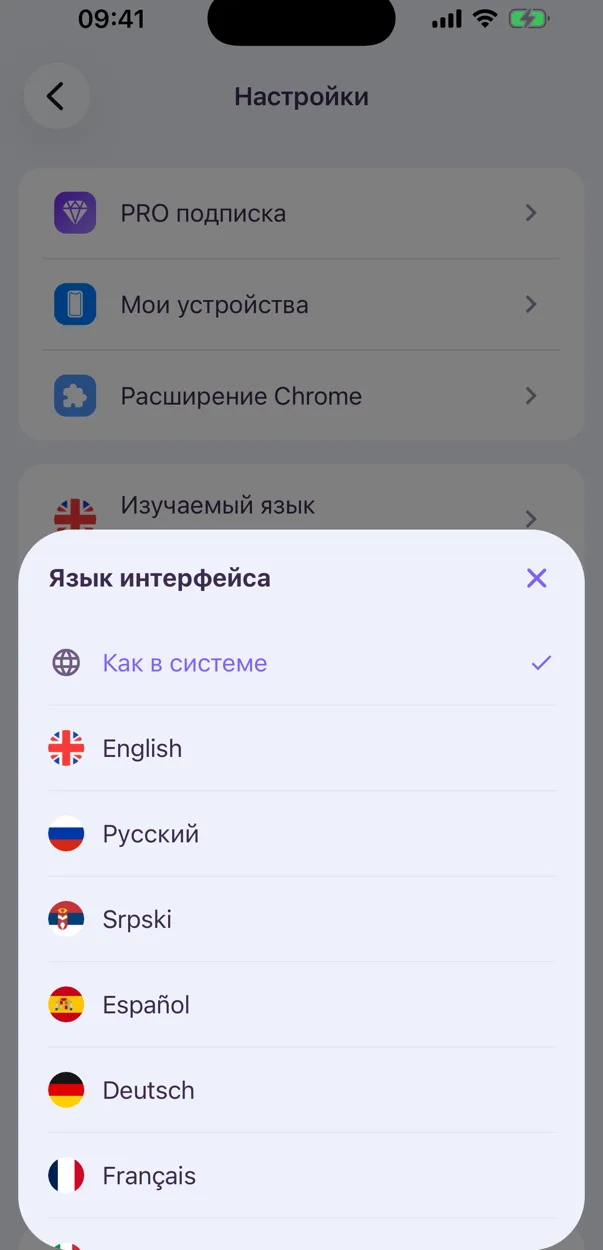
VibeLing used to follow your phone’s language. Now you choose the interface language in settings — say, your phone in English and the app in Spanish.
 VibeLing
 English
 Español
 Português
 Deutsch
 Français
 Italiano
 Română
 Srpski
 Türkçe
 Eesti
Eesti Polski
 Українська
 Русский
Change the app language and your native language in settings, read spelling tiles more easily, and see capital letters only where the language uses them.
VibeLing used to follow your phone’s language. Now you choose the interface language in settings — say, your phone in English and the app in Spanish.
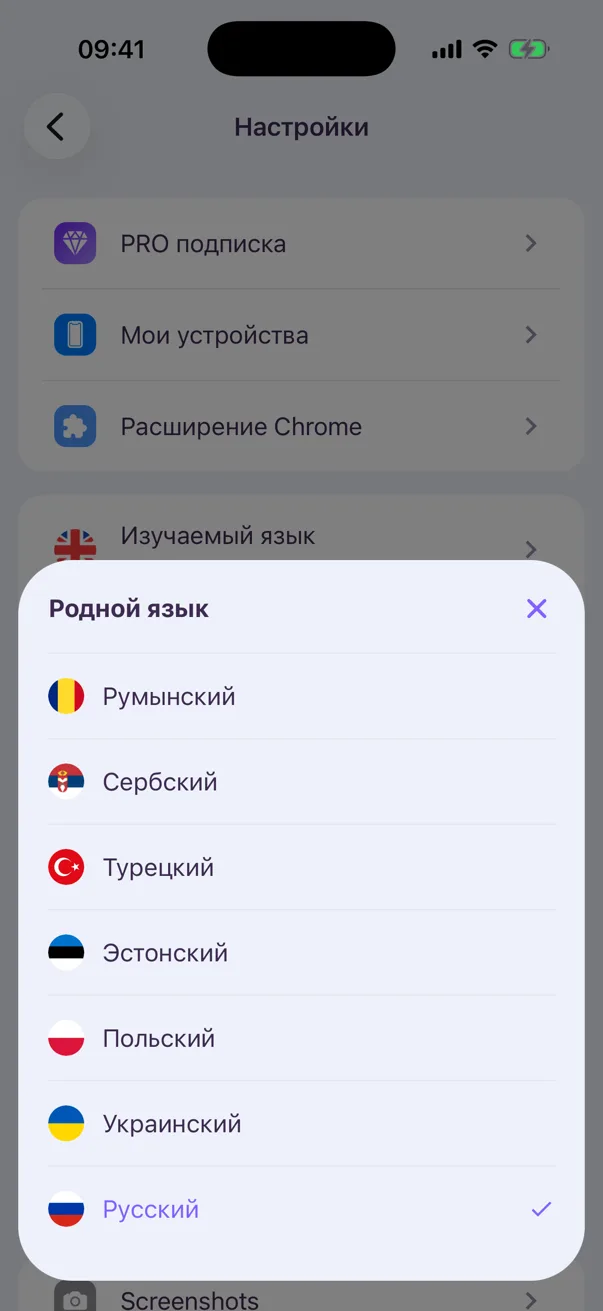
Get translations in another language — for example, switch from Russian to Ukrainian. Words you already saved keep their translations.
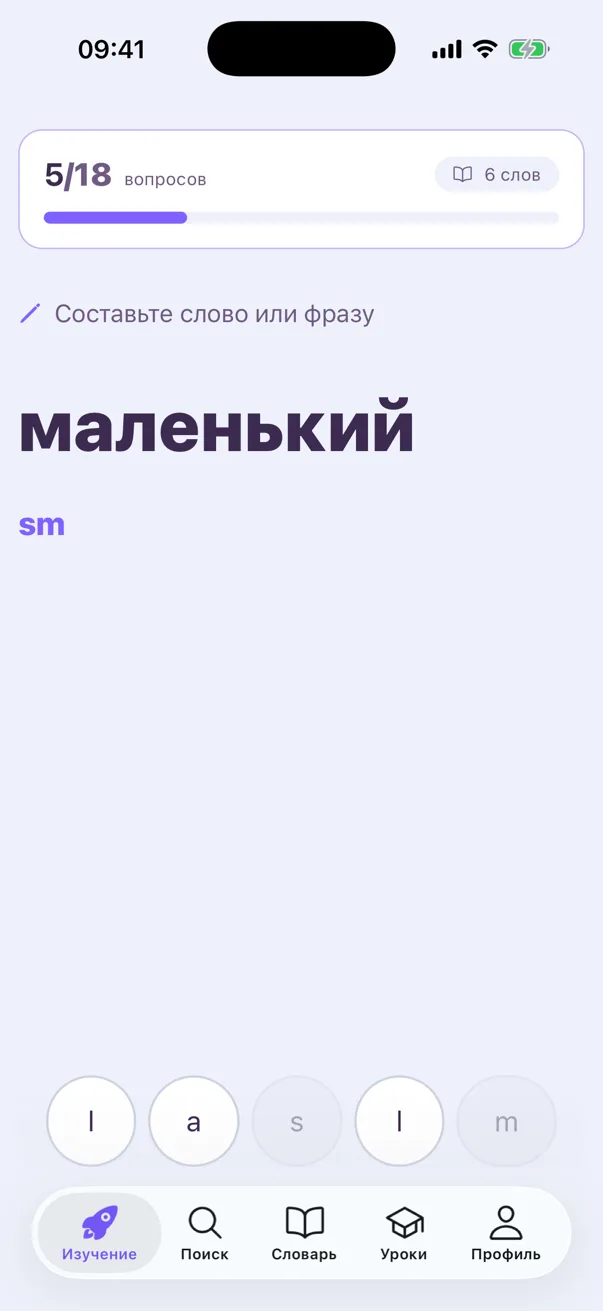
Spelling training now uses light tiles with large dark letters, so there’s no squinting. Long words scroll, and the tiles never cover the hint.
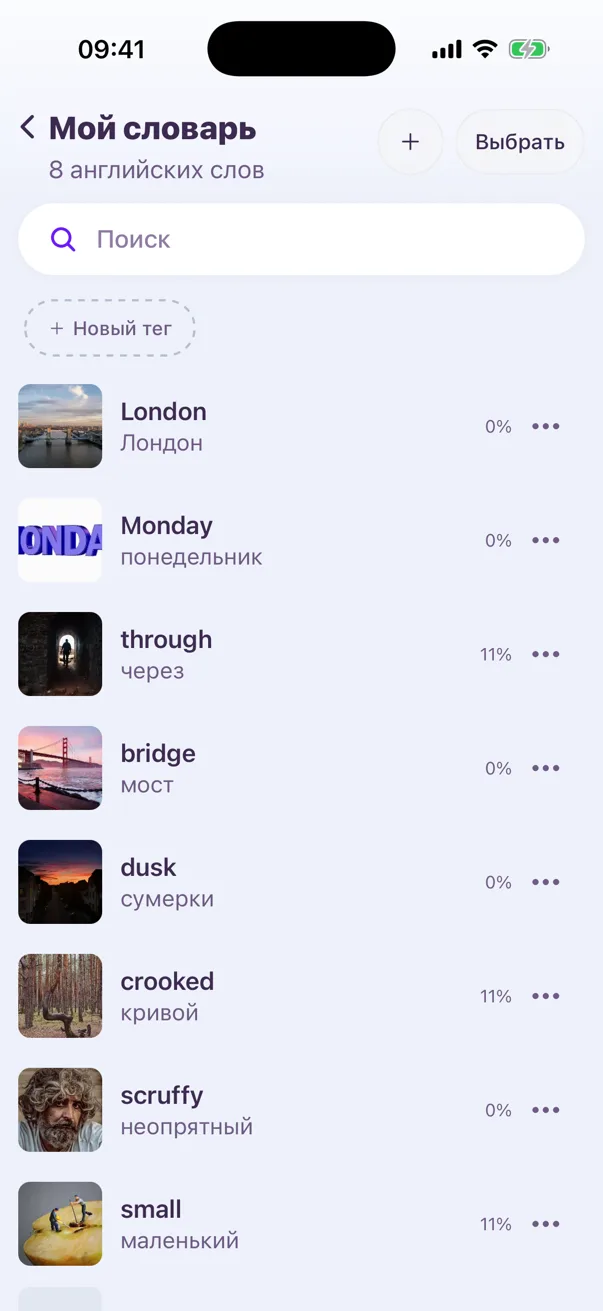
Words and translations no longer jump between upper and lower case. Names, cities and weekdays keep their capital letter, as the language requires: London, Monday — but bridge.
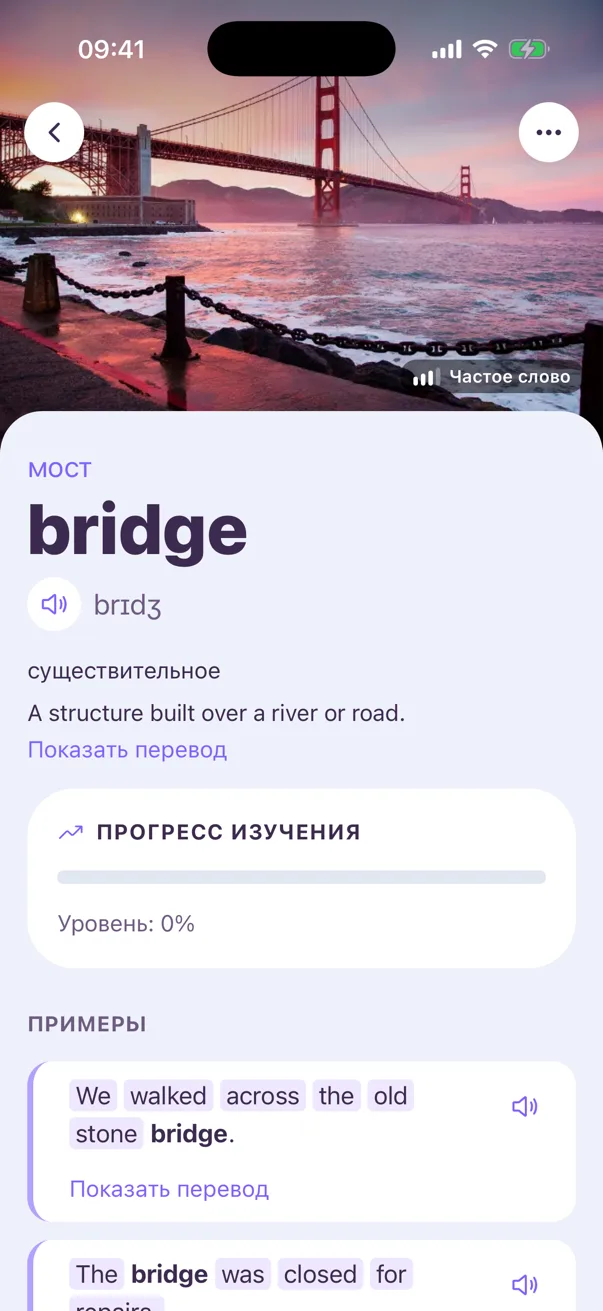
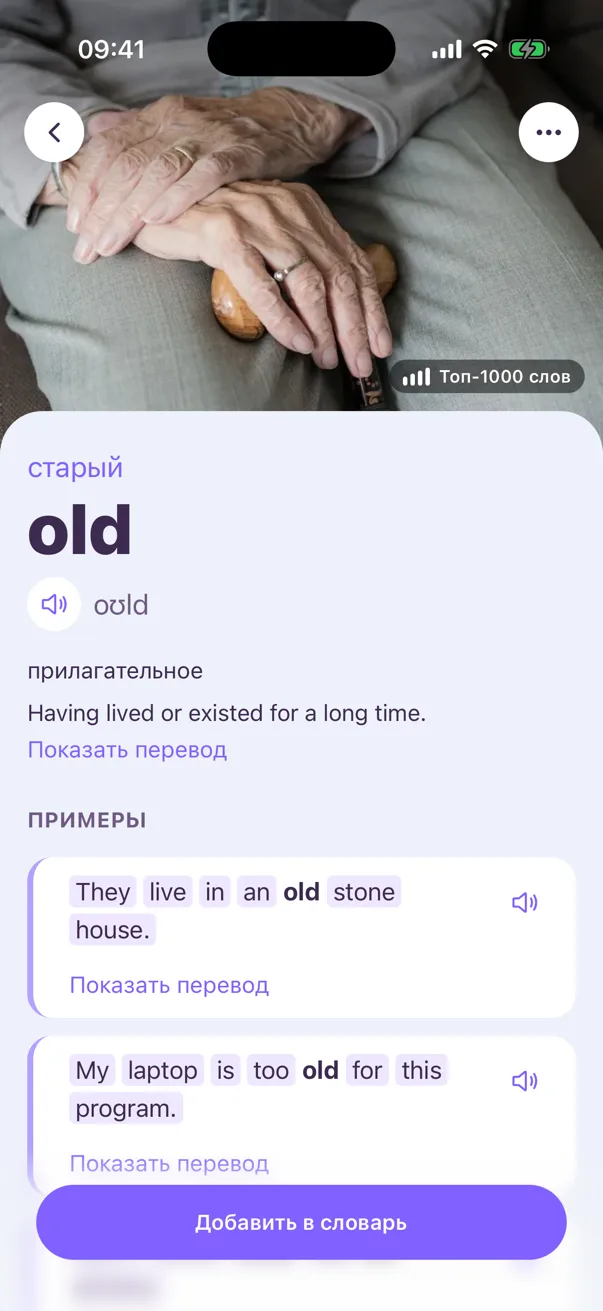
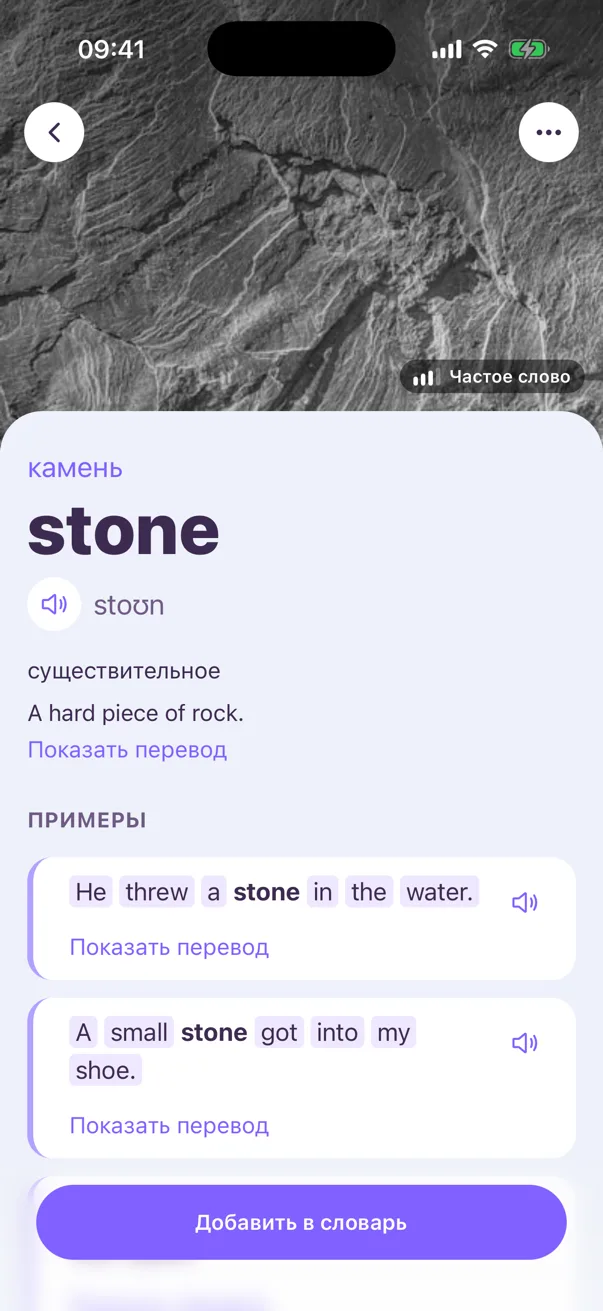
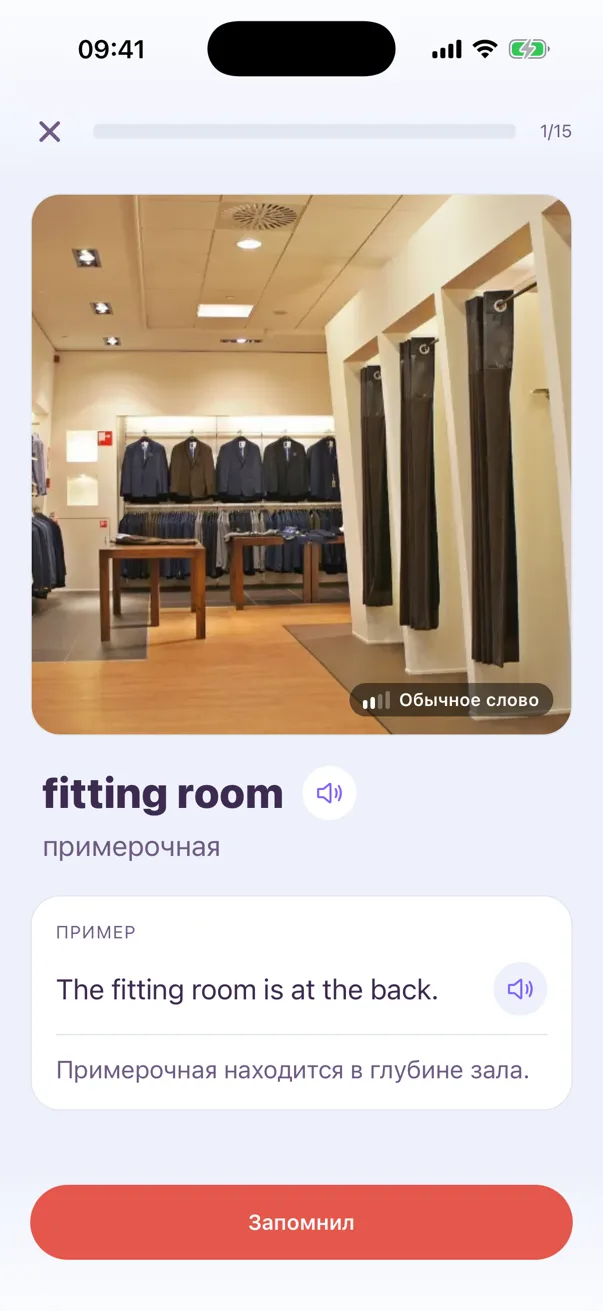
Just like on the word card, lessons now show how common each word is — top 1,000, common or rare — so you know what to learn first.
Open a word, tap a word in its example, then another — as deep as you like. The app used to lag a few levels in; now it stays as fast as on the first card.